
Use this when your WooCommerce store is dragging — slow product pages, a checkout that takes forever to load, or Lighthouse scores in the 40s. Most stores have 4–5 fixable problems stacked on top of each other.
This guide frames performance targets around Core Web Vitals and measured checkout behavior instead of promising a fixed Lighthouse score or universal conversion lift.
Diagnose Before You Touch Anything
Run a Lighthouse audit in Chrome DevTools (incognito, no extensions) against a product page and your checkout page separately. The numbers you actually need:
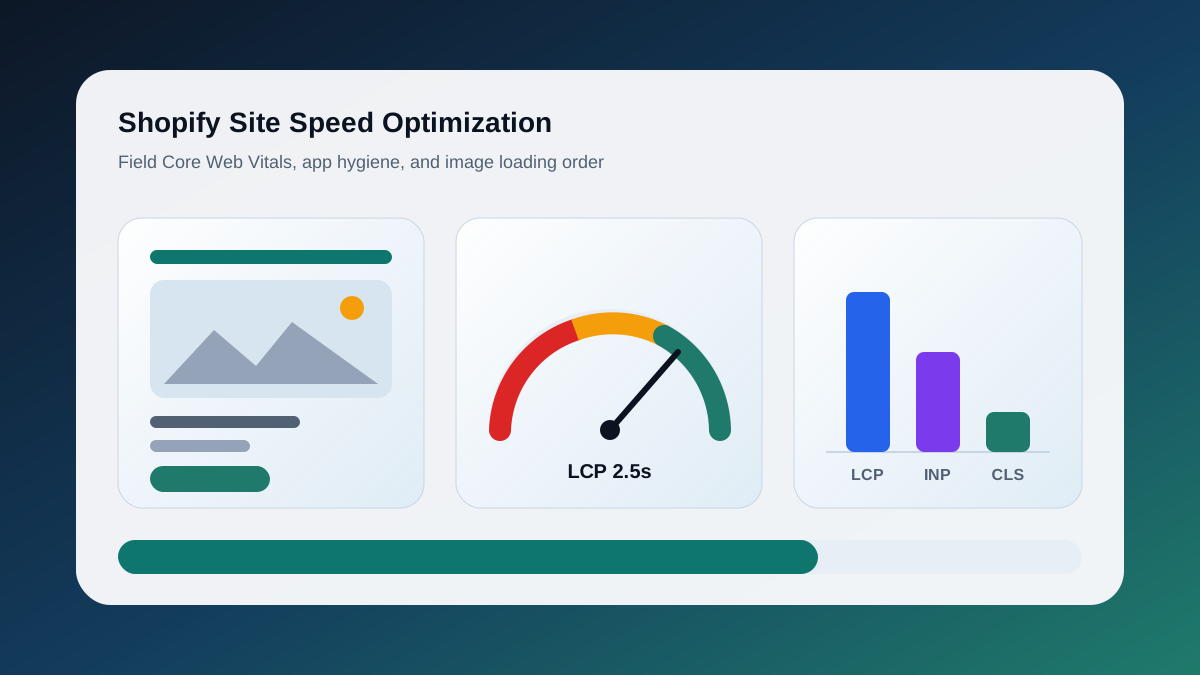
- LCP (Largest Contentful Paint): should be under 2.5s. On WooCommerce it's almost always a product image or hero banner.
- TTFB (Time to First Byte): if this is above 600ms, the problem is server-side — hosting, PHP, or uncached pages.
- TBT (Total Blocking Time): high TBT means JavaScript is holding up the main thread. Usually a plugin loading on every page when it shouldn't.
Also run Query Monitor on your product page. If you're seeing 80+ database queries or any query taking over 100ms, that's your bottleneck right there.
Image Optimization
Product images are the single biggest quick win. A store that imported images from a supplier CSV usually has 3–5 MB JPEGs sitting uncompressed in the media library.
Serve WebP everywhere. The simplest approach is Cloudflare's Polish feature if you're proxied through Cloudflare — flip it on and you're done. Otherwise, install Imagify or ShortPixel and bulk-convert the existing library.
Enable lazy loading for images below the fold. WordPress 5.5+ adds lazy loading natively to common image helpers, but WooCommerce gallery thumbnails and custom themes can bypass it. Check the rendered product HTML and make sure non-critical gallery images are not eager-loaded.
Also make sure you're generating correctly sized thumbnails. WooCommerce ships with thumbnail, single-product, and gallery thumbnail sizes. If your theme requests sizes that do not exist, WordPress may serve the full original image. Regenerate thumbnails after adjusting media settings.
Database Cleanup
WooCommerce is aggressive about writing to the database. A store that's been running for a year without cleanup can have hundreds of thousands of rows that serve no purpose.
The main offenders:
- Post revisions: WordPress saves a revision every time you update a product. Helpful for posts, wasteful for products at scale.
- Transients: WooCommerce uses transients heavily for fragment caching. Expired transients pile up in the options table.
- Orphaned order meta: Old orders accumulate meta rows from plugins that have since been deleted.
- WC sessions: Each cart session writes to the WooCommerce sessions table. Abandoned carts that never convert stick around.
Clean up expired transients, stale sessions, orphaned order meta, and unnecessary post revisions with a tested backup and a staging pass first.
For ongoing cleanup, schedule the work with WP-Cron or a server cron. Do not run session cleanup during peak hours, and always check the row count before deleting.
After cleanup, optimize bloated tables during a maintenance window.
Plugin Audit
Every active plugin loads PHP and usually enqueues scripts and styles. Most store owners install a plugin to solve a problem, solve it, and forget to remove the plugin.
Start with the script audit. Open a product page in DevTools → Network tab → filter by JS. Count how many scripts load. On a lean WooCommerce store you'd expect maybe 8–12 scripts. If you're seeing 30+, something's wrong.
Identify which plugin owns each script using Query Monitor's "Scripts" panel. Then remove scripts and styles that do not belong on that page type.
Same logic for checkout — only load what checkout actually needs. A booking plugin's calendar scripts have no business loading on the checkout page.
Keep your active plugin count under 20 if possible. Every plugin is a potential conflict, an update liability, and a performance cost.
Caching Strategy
WooCommerce is hard to cache because cart state varies per user. You need a layered approach:
Object cache with Redis is the highest-leverage change you can make server-side. Without it, every page load hits MySQL for options, transients, and user data that almost never changes. With Redis, those reads are microseconds instead of milliseconds.
Install the Redis Object Cache plugin and point it at your Redis instance. Use a store-specific cache key salt so multiple sites on the same infrastructure do not collide.
Page cache for WooCommerce requires careful exclusions. You cannot cache cart, checkout, account, or any page with a WooCommerce shortcode that renders user-specific content. LiteSpeed Cache and WP Rocket both handle WooCommerce exclusions well out of the box.
At minimum, exclude cart, checkout, account, AJAX cart actions, and add-to-cart URLs from full-page cache.
CDN for static assets (CSS, JS, images) takes load off your origin and cuts latency for visitors in other cities. Cloudflare's free tier is fine for this. If you're on a managed host like Kinsta or WP Engine, their CDN is already configured — make sure it's turned on.
Checkout Performance
Checkout is where slow performance directly costs you revenue. Delays near payment increase hesitation, create duplicate-click risk, and make mobile shoppers more likely to abandon the order.
First, trim unnecessary fields. WooCommerce's default checkout asks for more than most stores need. If you sell digital goods or ship to a single country, remove low-value fields and keep the form focused.
Fewer fields means less JavaScript to validate, less DOM to render, and faster form submission.
Second, load payment gateway scripts only on checkout. Stripe, PayPal, and Square should not add checkout JavaScript to every product, blog, and category page.
Third, if you're using a gateway that supports it, switch to asynchronous payment intent creation instead of blocking on page load. Stripe's Payment Element supports this — initialize the element after the page is interactive rather than in the critical path.
Hosting Considerations
Some performance problems can't be fixed at the application layer. If your TTFB is consistently above 800ms after enabling Redis and page caching, the bottleneck is the server itself.
Signs that shared hosting is the ceiling:
- TTFB varies wildly (200ms one request, 1200ms the next) — you're sharing CPU with other tenants
- PHP worker limits cause queue buildup during traffic spikes
- You can't install Redis or Memcached
- MySQL slow query log isn't accessible
For a store doing meaningful revenue, the jump from shared hosting to a VPS (even a $20/month DigitalOcean or Vultr instance with CloudPanel) is usually worth it. Managed WordPress hosting (Kinsta, WP Engine, Pressable) handles Redis, CDN, and server-level caching for you — the cost is higher but the configuration overhead is near zero.
When to Bring In Help
If you've worked through this list and you're still seeing LCP above 3.5s or checkout TTFB above 1s, the remaining issues are usually architectural — server configuration, theme code quality, or a plugin that's fundamentally incompatible with caching. That's not a checklist problem.
ValeoFX works with WooCommerce stores in Toronto and across Canada on performance audits, hosting migrations, and checkout optimization. If you'd rather scope it properly than keep guessing, get in touch.
Keep the Thread Going
- Service path: WooCommerce Support Toronto
- Related read: Why Slow Ecommerce Loses Sales
- Related public work: Euromotors
- Ready to scope your own version? Start a project