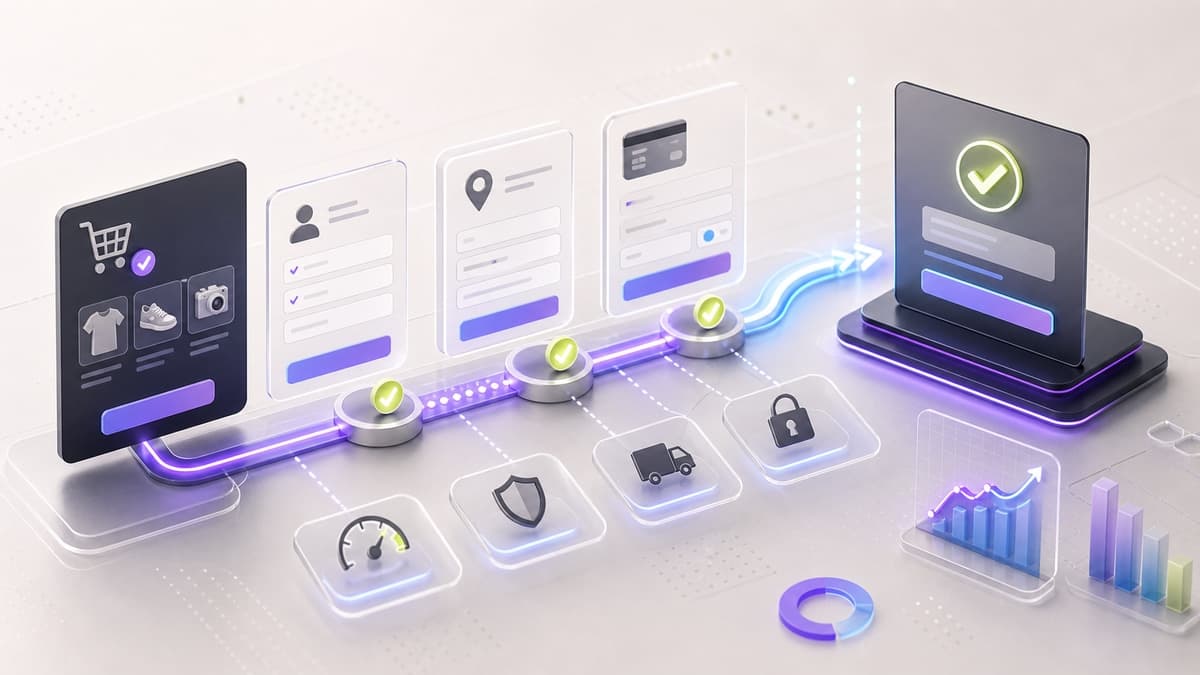
WooCommerce stores can lose a large share of shoppers at checkout when the experience is slow, confusing, or missing the payment method buyers expect. For Canadian stores, where customers are used to fast mobile checkout, clunky flows show up quickly in abandoned carts. This guide covers what actually moves the needle, drawn from optimizing checkout flows for e-commerce clients across Ontario and beyond.
Treat every recommendation as something to test against your own product, traffic, and payment mix. Lift estimates should stay directional and tied to measurable checkout signals.
Auditing Your Current Checkout Flow
Before touching a line of code, map where shoppers are dropping off. Open GA4 and look at the funnel from product page → cart → checkout → payment → thank-you. Every step with more than a 30% drop deserves attention.
First identify whether the store uses the newer Checkout Block or the legacy checkout shortcode. WooCommerce treats those editing paths differently: the Checkout Block is edited in the site editor, while the legacy shortcode exposes different field settings in the customizer. Do not install a field editor, payment add-on, or layout plugin until you know which checkout type the store is actually using.
Common friction points we see on WooCommerce stores:
- Too many required fields. Asking for a company name, phone number, and address line 2 on a B2C store adds zero value and costs conversions.
- No address autocomplete. Shoppers in Toronto type "123 Bloor" and expect the city, province, and postal code to fill themselves.
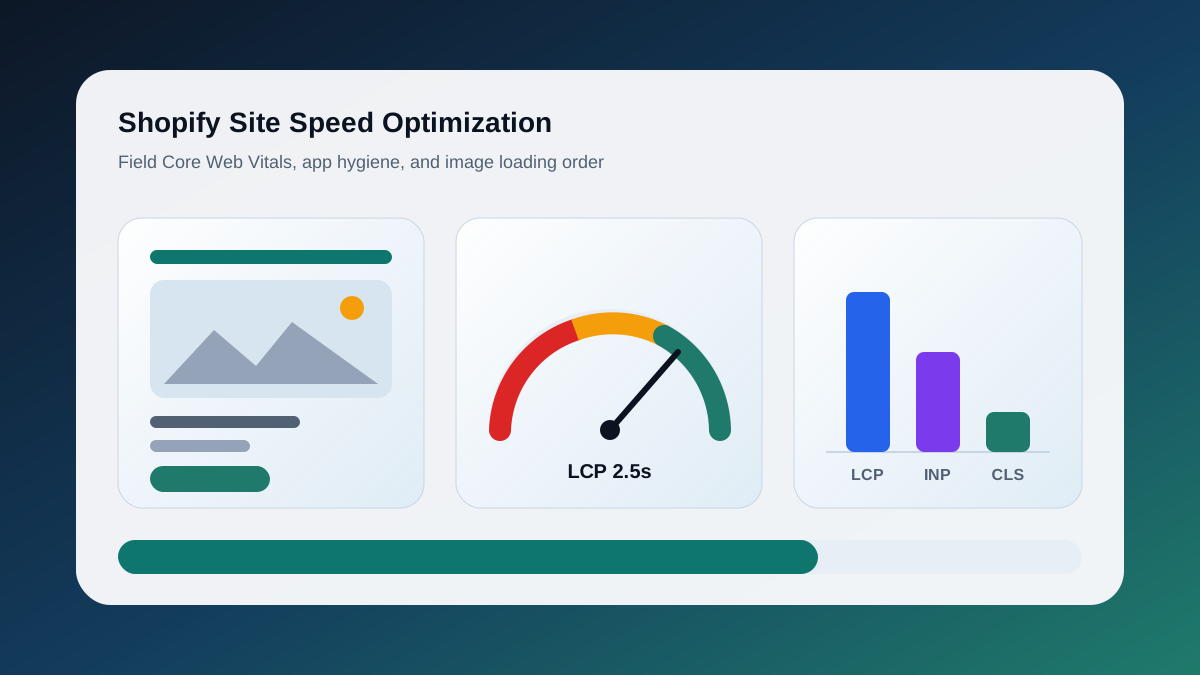
- Slow page load at checkout. Third-party chat widgets, unoptimized JS, and uncached pages all fire right when the customer is about to pay.
- Single payment method. A customer who wants to pay with PayPal and sees only a credit card form will leave.
- No inline field validation. Showing errors only after the form submits is a conversion killer.
Run Lighthouse on your checkout URL and aim for a performance score above 80 before making any UX changes — slow pages make every other fix less effective.
Removing Unnecessary Checkout Fields
The default WooCommerce checkout asks for 14 fields. Most stores need far fewer. Start by removing or making optional anything that does not help fulfill the order:
- company name for B2C stores
- address line 2 when it rarely applies
- phone number when you do not call customers
- duplicate shipping fields when billing and shipping are usually the same
- country selection when you only ship within Canada
Pair this with the WooCommerce Address Autocomplete plugin (or a custom Google Places integration) to autofill city, province, and postal code from the street address. The drop in checkout time is measurable.
Enabling Guest Checkout and Autofill Optimization
Forcing account creation before purchase is one of the most common self-inflicted conversion wounds. Enable guest checkout in WooCommerce → Settings → Accounts & Privacy and check "Allow customers to place orders without an account."
Then make the login prompt less aggressive. By default WooCommerce can show a login notice at the top of checkout. Move that prompt lower on the page or collapse it behind a secondary link so it does not intercept first-time buyers.
For autofill, ensure your field names and autocomplete attributes are browser-readable. WooCommerce sets these correctly by default, but custom themes sometimes strip them. Check the rendered HTML and confirm the email and address fields carry the right browser autofill hints.
Payment Gateway Setup for Canada
Canadian shoppers expect Stripe, PayPal, and ideally a local option. Here is the stack that consistently performs well:
Stripe — install the official WooCommerce Stripe Payment Gateway plugin. Enable Apple Pay and Google Pay in the plugin settings. These show up automatically on compatible devices and can improve mobile checkout because they skip manual card entry entirely.
PayPal — use WooCommerce PayPal Payments (the newer plugin, not the legacy PayPal Standard). Enable Pay Later messaging on the product and cart pages. Canadian buyers respond to it.
Moneris — if your business already has a Moneris merchant account (common with Canadian banks), the Moneris for WooCommerce plugin connects directly. Useful for stores that need Interac Online or are in regulated industries where card-brand-branded gateways raise chargebacks.
Display all active gateways on the checkout page with clear logos. Shoppers scan for their preferred method before they read anything else on the page.
For express checkout, test on real devices before announcing it:
- Apple Pay on Safari with a supported wallet
- Google Pay on Chrome with a supported wallet
- desktop and mobile checkout paths
- gateway test mode and live mode
- domain verification for wallet payments
- fallback card payment when express methods do not appear
- failed, cancelled, and duplicate-click states
Express checkout blocks only appear when a compatible gateway and payment method are active, so absence can be a configuration issue rather than a design bug.
Adding Trust Signals
By the time a shopper reaches checkout, they have already decided they want the product. What kills the sale is anxiety — "Is this site safe? What if I need to return it?"
Security badges. Add an SSL lock badge and a short "Secure checkout" line near the payment fields.
Return policy snippet. Put a plain-language one-liner under the Place Order button so shoppers know what happens if the product is not right.
Real-time field validation. WooCommerce does basic HTML5 validation but does not flag errors until submit. Add inline validation with a lightweight script or a plugin like WooCommerce Checkout Field Editor so the email field turns red immediately if the format is wrong, rather than after the customer clicks Place Order.
Cart Abandonment Recovery
Even an optimized checkout will see abandonment. The question is how much revenue you recover from it.
Email sequences. Use AutomateWoo or Klaviyo for WooCommerce to trigger a three-email sequence:
- 30 minutes after abandonment — "You left something behind." Show the cart, no discount.
- 24 hours later — "Still thinking it over?" Add a 5–10% discount code with a 48-hour expiry.
- 72 hours later — "Last chance" email with the discount still active. After this, let it go.
Captured email matters here: AutomateWoo can fire the sequence as soon as a logged-in user or a guest who typed their email into the checkout form abandons, even if they did not submit.
Exit-intent overlays. A well-timed exit popup on the cart page — not the checkout page, where it feels intrusive — can capture email addresses before shoppers leave. Keep the offer simple: "Save your cart and get 10% off your first order."
For WooCommerce specifically, ensure your abandoned cart plugin marks carts as recovered when a customer completes purchase via the recovery link so you are not counting false positives in your reports.
Measuring Results with GA4
None of this matters unless you can see whether it worked. Set up GA4 Enhanced E-commerce via Google Site Kit or WooCommerce Google Analytics Integration, then verify these events are firing in GA4 DebugView:
- Begin checkout — fires when a user lands on the checkout page
- Add payment info — fires when a payment method is selected
- Add shipping info — fires when shipping is confirmed
- Purchase — fires on the thank-you page
Build a funnel exploration in GA4 (Explore → Funnel exploration) with those four events as steps. Track the step-by-step drop-off rate weekly. After each optimization, give it two weeks of data before drawing conclusions — daily variance on low-traffic stores is high enough to mislead.
Set up a custom event for payment method selection so you can see which gateways are actually converting. Keep the event payload minimal: the selected method, checkout step, and order context needed for reporting.
This data tells you whether to add or remove a gateway, and whether your mobile Apple Pay uplift is actually showing up in the numbers.
These optimizations compound. Removing unnecessary fields, enabling guest checkout, and adding a trusted fast payment option can produce a measurable lift when checkout friction is the real bottleneck. Start with the audit, pick the highest-friction point, ship one fix at a time, and measure.
For more e-commerce conversion strategies, read 7 E-Commerce Fixes That Consistently Lift Conversion. See the EuroMotors case study for real checkout optimization results.
For hands-on WooCommerce optimization — field customization, gateway setup, or abandonment recovery builds — see WooCommerce Support Toronto. Start a project for a free checkout audit.